
 |
| digitalideas24 |
you want want to design wonderful made to promote your business to rock online, but don't know how to start or the right tool to use, Trust me, canva can make the magic happen, even though you are a beginner I will show How to use canva for beginners. Canva has a mobile version and it's also a browser-based design tool also but I prefer a mobile app for android and ios that makes it easy to create great images. Canva is widely used on desktop computer as web browsers based to design all manners of graphics and anything. Eg: Facebook post Instagram post Pinterest pin Etc
Benefits of Canva:
Pre-sized social media images. Every thing been don for you, why canva is so simple and easy is that you'll only costumize installed templates, you really has no much work to do than take a less minutes(10 munites) to customize and turn templates into a beautiful design..
Designer type templates get your graphics
Check out one of the best graghics designer[Stefan Sagmeister]
started. Lots of size and shape options. Don't worry, you might be wondering How to use canva for beginners. It's totally easy and simple. Search for stock images and pay a small fee. Don't worry canva has a free version, you will only have a more beautiful result with PRO VERSION.. to use – or use the free stuff. Save your imagesto edit or download it when you are satisfied and ready to use it. No limit to any amount you are willing to design, related graphics from a template. Do those features sound useful? Check out this !How to use canva for beginners let's get started with 6 easy steps, then I show you the rest of the features you’ll want to get into! Near the end of this post , Canva focused on specific tasks. And conclude with Canva shortcuts! Let’s get started Easy ways to use Canva step by step Let’s start with something simple. Step 1:Head over to Canva.com . If it’s your first time, you’ll have to set up an account. In just 60secs you are done. Select Size and Shape( so Important to organize your work) |
| digitalideas24 |
2 Click the ‘create a design’ button in the top right corner.
 |
| digitalideas24 |
pick from ‘custom dimensions’ or a range of pre-selected sizes. Canva makes it easy to start your design by including templates for the optimal sizes on many social media platforms. We’ll grab an Instagram post for this example. You can also select things like a Pinterest image, a Twitter post, a Facebook post, or more. Step 3: Set your Background(its available on pro
 |
| digitalideas24 |
version.. With the blank canvas in front of us, let’s choose a background. You can pick a plain color or pattern. There are abstract images and even photos to choose from. You could also select a photo and add this to the background. This includes photos you upload.
learn more beautiful work from[ Sam Larson]
Textures like this gradient one are fun. We’ll use this
one.
Step 4: you can add Text to your image
click on the add text
Go to ‘text’ on the left-han menu and there are
options to choose a simple text box. Or some font to use also
combinations and effects.
Choose a font combination idea to start with. Start writing what you want to input.
Or the quote you want to use.
Select the one you want and then use the round dots
in each corner to make it bigger
Little purple lines will appear to help you get it in the
center.
Step 5: Add Your Name or URL
To add your URL or blog name to the graphic..
select a text box and move it to the bottom.
You can change the size and also match up the fonts
with the ones used. Just select the font menu or the
size menu along the top.
Step 5: Finish and Save
 |
| digitalideas24 |
Give your quote or design a name so you can spot the file on
the computer or mobile gallery depending on the device you use. It will be default to identify the words on the
screen or sometimes ‘untitled’.
Then use the ‘download’ button to download it.
Select your favorite format. Your quote is ready to use! Using Canva templates to make designs in a flash While designing from scratch is simple, as a Canva hope I'm putting you through on how to use canva for beginners, templates are crucial. So benefitials. As you learn to use Canva, you may find you out you don’t need them. But if you are making a lot of fresh pins for Pinterest or regular Instagram content, they’re a big help and that's why you must use canva. There are two main options for templates. Canva provides a whole range inside the app. Or you can buy high-quality third-party templates and upload. It wil be alright to your advantage too. have You can save save hundreds of Pinterests to pintrest so you should really know w How canva works. And now you can get their pro design template to customize for way less than it costs to get access, you need to pay some fees. . You can also see loads of templates in Canva. Some are free though majority are paid versions. You do need to personalize them though as LOTS of people are using them! But they’re a good starting point if you’re stuck. How to use Canva for free When you first start using Canva, you might not want to pay for it immediately. That’s okay, you can learn how to use Canva for free and sample lots of their features. With a free Canva plan you can: Import images you have the rights to use and add them to designs Use their free elements, stock photos and fonts. I will advise you to download stock photos from pexel website to rock your free version. Though using canva pro will earn you more in productivity Export in a range of file types including PDF and JPEG Create custom dimension graphics Share view or edit access with your team Should you upgrade to Canva Pro? Canva Pro the paid version of the Canva app and adds some cool features. It costs around $10 a month or a bit less if you pay for a year up front. With the paid Canva plan you can: Add brand colors, fonts, and logos with a branding kit so you can easily access them Resize designs with a single click Access to 60,000 free templates Over 60 million premium stock images, photos, graphics, and even video Upload fonts and logos, you own and can use Export designs as animated GIFS or MP4 videos How to use the Canva app If you are more of a smartphone user than a desktop one, that’s cool, because Canva has an app for that. You can go here to enter your phone number and they’ll text you a link to download the app. Soon you’ll be creating beautiful designs anywhere, on your iPhone, iPad, or Android phone or tablet.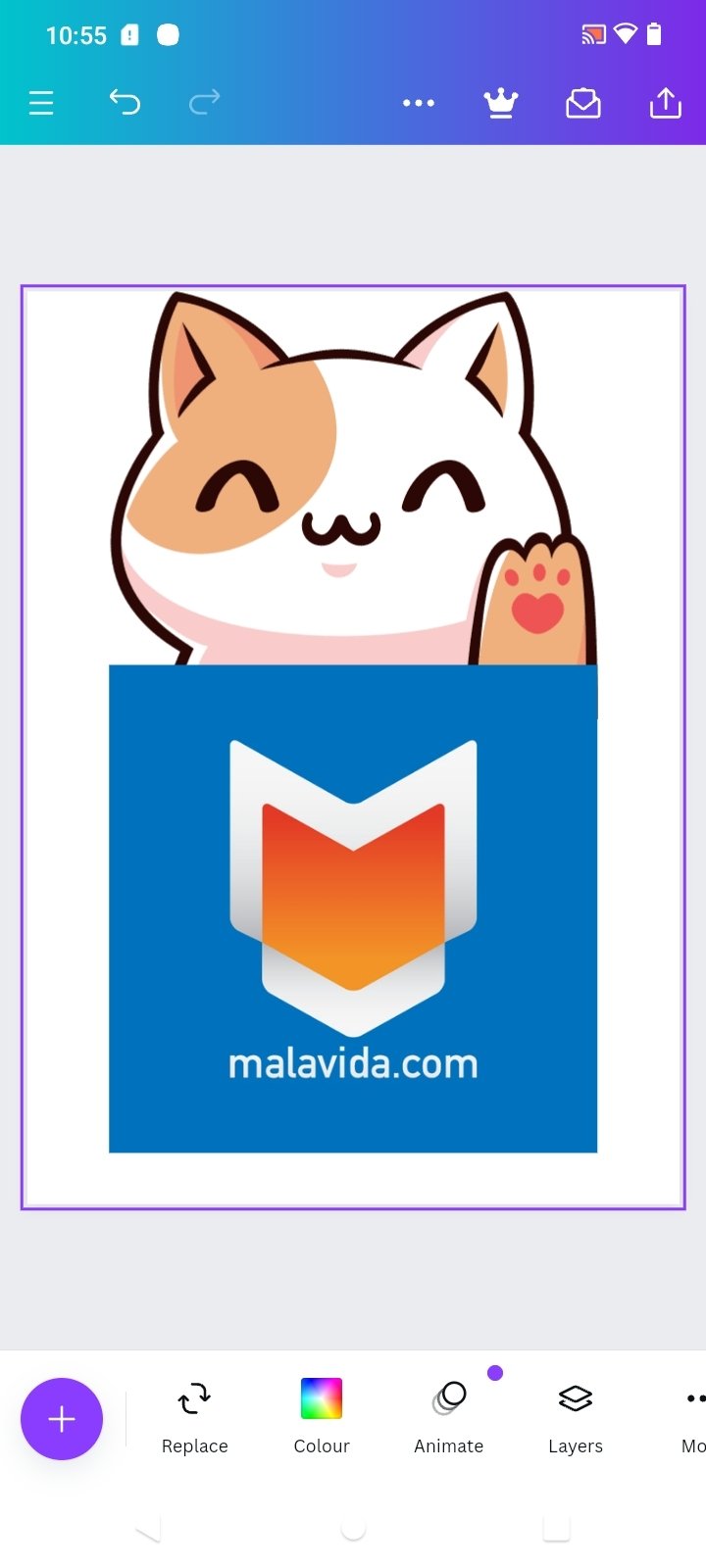 Once you have the app, either login to your account,
or sign up for one.
Then you’ll see a range of options. Pick a type of
image or even jump straight into a template.
Once you’re there, you can change colors, add filters,
and move elements around.
You can even change to add a picture from your
camera roll. Or use one of the ones Canva provides.
Click done. Then you can add more elements or
change what you have.
Finally, you can download it. Or upload it to a cloud
storage device and use it how you want later.
Other design features
Canva is packed with design features to use. Here
are some of my favorites.
Font effects
One of the fun features is the font effects. Some of
these are pretty retro!
You can use them to make words on a graphic stand
out.
There are also animated options!
Go to ‘text’ on the menu and choose an effect you
like.
Then click ‘effects’ along the top menu to see what
you can do with it.
For example, here, you can use shadow or lift. You
can make the words hollow, slice or echo. Plus, you
can change the color of the shadow!
Graphs and charts
For things like infographics, charts and graphs are
really important.
And there’s a whole range you can make in Canva.
Go to the ‘elements’ option on the menu and scroll to
‘charts.’
Then you can choose from the type of graph or chart
you want.
If you choose something like a bar chart, you can
input information like you would on a spreadsheet.
You can change the colors on the chart too. Check it
out below.
Icons
Also under Elements, you’ll find loads of icons to use
in your designs.
From simple line icons to full visual images, there are
tons of choices in Canva.
In the ‘Elements’ menu, type in what you want.
Below, you can see I searched ‘bird icon.’
Select the one you want and move it into place on
the design.
With some, you can even change the colors! This is
great to keep your branding intact.
Stickers
Stickers are like animated icons. They add
movement to a graphic which is popular for lots of
social media sites.
There are word stickers, arrows, shapes, and even
emojis. Plus, there are seasonal ones to use. You
know I love using holidays for social media!
Use stickers to highlight a call to action, emphasize
something important, or just to grab attention.
How to find Canva’s icons, stickers, and gradients.
Gradients
Gradients are a big trend and a fun way to add color
to a design.
There are all kinds of shapes in Canva with premade
gradients.
Plus, you can change the colors on them to match
your branding or design.
Colors picked from a photo while
designing
If you want to make colors match a photo, that often
gets tricky.
But Canva now helps with this.
When you have a photo on a canvas, it will have a
small palette of colors appear when you select the
color option.
These come from the photo.
They appear just above the default colors and below
any brand colors
Styles
If you select the ‘more’ option in the menu and
choose Styles, there’s another handy feature.
This is a selection of trending colors with font
pairings.
So, if you don’t want to use your branding, these are
brilliant.
You can also select just colors or just fonts.
Video features in Canva
We all know that video is huge for social media.
Wouldn’t you love to have a viral Facebook video ?
There are lots of tools available to make a video.
But even if you’re a beginner Canva user, you’ll find
easy features to create a video in the app.
Animate a graphic
The most basic is to animate a graphic.
When you have a design, there’s an ‘animate’ option
on the top menu.
There are seven free options and five more for paid
Canva users. They all make the elements in the
design move in different ways.
And they download as a video file!
Video stock images
Along with stock images, there is now a selection of
stock video in Canva.
This is available on the side menu under ‘video.’
You can add these to your designs or upload your
own video as well.
Add a video to a template
You can add a video to a template in the same way
as an image. These can be videos you upload, or
their stock ones.
Simply drag and drop the video where you want it on
the template.
Music to add to video
In the ‘more’ menu there’s also a selection of music.
If you create a video, you can add a soundtrack to it!
Some are on the free plan and others for the Pro.
Here’s where you’ll find a selection of stock video and music
in Canva, and where to integrate with other apps.
Other Canva features
Finally, there are a few more things inside the Canva
app you may want to use.
Post to social media
Canva does have the option to post straight to social
media.
This isn’t something I’ve used as I prefer to organize
my posts through SmarterQueue . But it’s something
worth trying if you don’t have a scheduler yourself.
Integrate with other apps
Canva also integrates with loads of other apps.
This includes things like Google Drive or GIPHY.
You can import images from Box of Flickr. Or add
more emojis.
Just go to the ‘more’ side menu and there’s a whole
list of them.
Print options
For US users, there’s an option to have your designs
printed. This is great for things like business cards
and flyers.
If you go into the download menu in the top right
corner and select more, the options appear.
More Canva tutorials
I have an entire series of FREE task-specific Canva
tutorials!
Working with text:
How to Add a Text Box in Canva
How to Curve Text in Canva
How to Make a Table in Canva
How to Upload Fonts to Canva
How to Create an eBook in Canva
Working with images:
How to Crop in Canva
How to Use Frames in Canva
How to Make Background Transparent in Canva
How to Group Elements in Canva
Check them out now, Pin them for later!
How to Use Canva Like a Speed
Demon: Shortcuts!
Once you’ve gotten the hang of it, you can see that
Canva’s pretty fast for making graphics.
But would you like to know how to use Canva even
faster?
Check out the keyboard shortcuts on the infographic
at the end of this article!
It’s a good one to review just before you sit down to
create a bunch of Canva graphics.
This Canva shortcuts infographic includes some
keyboard shortcuts you know, and some specific to
graphics.
Don’t miss these:
Zoom in: Command +
Zoom out: Command –
Delete: Delete key
Search: Command ?
Drop in text: T key
Select all: Command A
Move 1 pixel: arrow keys
Move 10 pixels: Shift arrow key
Undo: Command Z
Redo: Command Shift Z
Copy: Command C
Paste: Command V
Pin the infographic, so you can remember how to use
Canva in record time!
Conclusion
The simplest answer to the question of how to use
Canva is to simply experiment.
There are tons of features, even on the free plan.
You can crank out:
–> Eye-catching Pinterest Pins .
–> Engaging Facebook content.
–> Brilliant Instagram posts.
You can easily customize your designs, and even
start with great templates to make designing even
easier.
Either way, get started and see what you can create
when you know how to use Canva.
Take a test drive today.
Once you have the app, either login to your account,
or sign up for one.
Then you’ll see a range of options. Pick a type of
image or even jump straight into a template.
Once you’re there, you can change colors, add filters,
and move elements around.
You can even change to add a picture from your
camera roll. Or use one of the ones Canva provides.
Click done. Then you can add more elements or
change what you have.
Finally, you can download it. Or upload it to a cloud
storage device and use it how you want later.
Other design features
Canva is packed with design features to use. Here
are some of my favorites.
Font effects
One of the fun features is the font effects. Some of
these are pretty retro!
You can use them to make words on a graphic stand
out.
There are also animated options!
Go to ‘text’ on the menu and choose an effect you
like.
Then click ‘effects’ along the top menu to see what
you can do with it.
For example, here, you can use shadow or lift. You
can make the words hollow, slice or echo. Plus, you
can change the color of the shadow!
Graphs and charts
For things like infographics, charts and graphs are
really important.
And there’s a whole range you can make in Canva.
Go to the ‘elements’ option on the menu and scroll to
‘charts.’
Then you can choose from the type of graph or chart
you want.
If you choose something like a bar chart, you can
input information like you would on a spreadsheet.
You can change the colors on the chart too. Check it
out below.
Icons
Also under Elements, you’ll find loads of icons to use
in your designs.
From simple line icons to full visual images, there are
tons of choices in Canva.
In the ‘Elements’ menu, type in what you want.
Below, you can see I searched ‘bird icon.’
Select the one you want and move it into place on
the design.
With some, you can even change the colors! This is
great to keep your branding intact.
Stickers
Stickers are like animated icons. They add
movement to a graphic which is popular for lots of
social media sites.
There are word stickers, arrows, shapes, and even
emojis. Plus, there are seasonal ones to use. You
know I love using holidays for social media!
Use stickers to highlight a call to action, emphasize
something important, or just to grab attention.
How to find Canva’s icons, stickers, and gradients.
Gradients
Gradients are a big trend and a fun way to add color
to a design.
There are all kinds of shapes in Canva with premade
gradients.
Plus, you can change the colors on them to match
your branding or design.
Colors picked from a photo while
designing
If you want to make colors match a photo, that often
gets tricky.
But Canva now helps with this.
When you have a photo on a canvas, it will have a
small palette of colors appear when you select the
color option.
These come from the photo.
They appear just above the default colors and below
any brand colors
Styles
If you select the ‘more’ option in the menu and
choose Styles, there’s another handy feature.
This is a selection of trending colors with font
pairings.
So, if you don’t want to use your branding, these are
brilliant.
You can also select just colors or just fonts.
Video features in Canva
We all know that video is huge for social media.
Wouldn’t you love to have a viral Facebook video ?
There are lots of tools available to make a video.
But even if you’re a beginner Canva user, you’ll find
easy features to create a video in the app.
Animate a graphic
The most basic is to animate a graphic.
When you have a design, there’s an ‘animate’ option
on the top menu.
There are seven free options and five more for paid
Canva users. They all make the elements in the
design move in different ways.
And they download as a video file!
Video stock images
Along with stock images, there is now a selection of
stock video in Canva.
This is available on the side menu under ‘video.’
You can add these to your designs or upload your
own video as well.
Add a video to a template
You can add a video to a template in the same way
as an image. These can be videos you upload, or
their stock ones.
Simply drag and drop the video where you want it on
the template.
Music to add to video
In the ‘more’ menu there’s also a selection of music.
If you create a video, you can add a soundtrack to it!
Some are on the free plan and others for the Pro.
Here’s where you’ll find a selection of stock video and music
in Canva, and where to integrate with other apps.
Other Canva features
Finally, there are a few more things inside the Canva
app you may want to use.
Post to social media
Canva does have the option to post straight to social
media.
This isn’t something I’ve used as I prefer to organize
my posts through SmarterQueue . But it’s something
worth trying if you don’t have a scheduler yourself.
Integrate with other apps
Canva also integrates with loads of other apps.
This includes things like Google Drive or GIPHY.
You can import images from Box of Flickr. Or add
more emojis.
Just go to the ‘more’ side menu and there’s a whole
list of them.
Print options
For US users, there’s an option to have your designs
printed. This is great for things like business cards
and flyers.
If you go into the download menu in the top right
corner and select more, the options appear.
More Canva tutorials
I have an entire series of FREE task-specific Canva
tutorials!
Working with text:
How to Add a Text Box in Canva
How to Curve Text in Canva
How to Make a Table in Canva
How to Upload Fonts to Canva
How to Create an eBook in Canva
Working with images:
How to Crop in Canva
How to Use Frames in Canva
How to Make Background Transparent in Canva
How to Group Elements in Canva
Check them out now, Pin them for later!
How to Use Canva Like a Speed
Demon: Shortcuts!
Once you’ve gotten the hang of it, you can see that
Canva’s pretty fast for making graphics.
But would you like to know how to use Canva even
faster?
Check out the keyboard shortcuts on the infographic
at the end of this article!
It’s a good one to review just before you sit down to
create a bunch of Canva graphics.
This Canva shortcuts infographic includes some
keyboard shortcuts you know, and some specific to
graphics.
Don’t miss these:
Zoom in: Command +
Zoom out: Command –
Delete: Delete key
Search: Command ?
Drop in text: T key
Select all: Command A
Move 1 pixel: arrow keys
Move 10 pixels: Shift arrow key
Undo: Command Z
Redo: Command Shift Z
Copy: Command C
Paste: Command V
Pin the infographic, so you can remember how to use
Canva in record time!
Conclusion
The simplest answer to the question of how to use
Canva is to simply experiment.
There are tons of features, even on the free plan.
You can crank out:
–> Eye-catching Pinterest Pins .
–> Engaging Facebook content.
–> Brilliant Instagram posts.
You can easily customize your designs, and even
start with great templates to make designing even
easier.
Either way, get started and see what you can create
when you know how to use Canva.
Take a test drive today.
 |
| digitalideas24 |
Select your favorite format. Your quote is ready to use! Using Canva templates to make designs in a flash While designing from scratch is simple, as a Canva hope I'm putting you through on how to use canva for beginners, templates are crucial. So benefitials. As you learn to use Canva, you may find you out you don’t need them. But if you are making a lot of fresh pins for Pinterest or regular Instagram content, they’re a big help and that's why you must use canva. There are two main options for templates. Canva provides a whole range inside the app. Or you can buy high-quality third-party templates and upload. It wil be alright to your advantage too. have You can save save hundreds of Pinterests to pintrest so you should really know w How canva works. And now you can get their pro design template to customize for way less than it costs to get access, you need to pay some fees. . You can also see loads of templates in Canva. Some are free though majority are paid versions. You do need to personalize them though as LOTS of people are using them! But they’re a good starting point if you’re stuck. How to use Canva for free When you first start using Canva, you might not want to pay for it immediately. That’s okay, you can learn how to use Canva for free and sample lots of their features. With a free Canva plan you can: Import images you have the rights to use and add them to designs Use their free elements, stock photos and fonts. I will advise you to download stock photos from pexel website to rock your free version. Though using canva pro will earn you more in productivity Export in a range of file types including PDF and JPEG Create custom dimension graphics Share view or edit access with your team Should you upgrade to Canva Pro? Canva Pro the paid version of the Canva app and adds some cool features. It costs around $10 a month or a bit less if you pay for a year up front. With the paid Canva plan you can: Add brand colors, fonts, and logos with a branding kit so you can easily access them Resize designs with a single click Access to 60,000 free templates Over 60 million premium stock images, photos, graphics, and even video Upload fonts and logos, you own and can use Export designs as animated GIFS or MP4 videos How to use the Canva app If you are more of a smartphone user than a desktop one, that’s cool, because Canva has an app for that. You can go here to enter your phone number and they’ll text you a link to download the app. Soon you’ll be creating beautiful designs anywhere, on your iPhone, iPad, or Android phone or tablet.
Once you have the app, either login to your account,
or sign up for one.
Then you’ll see a range of options. Pick a type of
image or even jump straight into a template.
Once you’re there, you can change colors, add filters,
and move elements around.
You can even change to add a picture from your
camera roll. Or use one of the ones Canva provides.
Click done. Then you can add more elements or
change what you have.
Finally, you can download it. Or upload it to a cloud
storage device and use it how you want later.
Other design features
Canva is packed with design features to use. Here
are some of my favorites.
Font effects
One of the fun features is the font effects. Some of
these are pretty retro!
You can use them to make words on a graphic stand
out.
There are also animated options!
Go to ‘text’ on the menu and choose an effect you
like.
Then click ‘effects’ along the top menu to see what
you can do with it.
For example, here, you can use shadow or lift. You
can make the words hollow, slice or echo. Plus, you
can change the color of the shadow!
Graphs and charts
For things like infographics, charts and graphs are
really important.
And there’s a whole range you can make in Canva.
Go to the ‘elements’ option on the menu and scroll to
‘charts.’
Then you can choose from the type of graph or chart
you want.
If you choose something like a bar chart, you can
input information like you would on a spreadsheet.
You can change the colors on the chart too. Check it
out below.
Icons
Also under Elements, you’ll find loads of icons to use
in your designs.
From simple line icons to full visual images, there are
tons of choices in Canva.
In the ‘Elements’ menu, type in what you want.
Below, you can see I searched ‘bird icon.’
Select the one you want and move it into place on
the design.
With some, you can even change the colors! This is
great to keep your branding intact.
Stickers
Stickers are like animated icons. They add
movement to a graphic which is popular for lots of
social media sites.
There are word stickers, arrows, shapes, and even
emojis. Plus, there are seasonal ones to use. You
know I love using holidays for social media!
Use stickers to highlight a call to action, emphasize
something important, or just to grab attention.
How to find Canva’s icons, stickers, and gradients.
Gradients
Gradients are a big trend and a fun way to add color
to a design.
There are all kinds of shapes in Canva with premade
gradients.
Plus, you can change the colors on them to match
your branding or design.
Colors picked from a photo while
designing
If you want to make colors match a photo, that often
gets tricky.
But Canva now helps with this.
When you have a photo on a canvas, it will have a
small palette of colors appear when you select the
color option.
These come from the photo.
They appear just above the default colors and below
any brand colors
Styles
If you select the ‘more’ option in the menu and
choose Styles, there’s another handy feature.
This is a selection of trending colors with font
pairings.
So, if you don’t want to use your branding, these are
brilliant.
You can also select just colors or just fonts.
Video features in Canva
We all know that video is huge for social media.
Wouldn’t you love to have a viral Facebook video ?
There are lots of tools available to make a video.
But even if you’re a beginner Canva user, you’ll find
easy features to create a video in the app.
Animate a graphic
The most basic is to animate a graphic.
When you have a design, there’s an ‘animate’ option
on the top menu.
There are seven free options and five more for paid
Canva users. They all make the elements in the
design move in different ways.
And they download as a video file!
Video stock images
Along with stock images, there is now a selection of
stock video in Canva.
This is available on the side menu under ‘video.’
You can add these to your designs or upload your
own video as well.
Add a video to a template
You can add a video to a template in the same way
as an image. These can be videos you upload, or
their stock ones.
Simply drag and drop the video where you want it on
the template.
Music to add to video
In the ‘more’ menu there’s also a selection of music.
If you create a video, you can add a soundtrack to it!
Some are on the free plan and others for the Pro.
Here’s where you’ll find a selection of stock video and music
in Canva, and where to integrate with other apps.
Other Canva features
Finally, there are a few more things inside the Canva
app you may want to use.
Post to social media
Canva does have the option to post straight to social
media.
This isn’t something I’ve used as I prefer to organize
my posts through SmarterQueue . But it’s something
worth trying if you don’t have a scheduler yourself.
Integrate with other apps
Canva also integrates with loads of other apps.
This includes things like Google Drive or GIPHY.
You can import images from Box of Flickr. Or add
more emojis.
Just go to the ‘more’ side menu and there’s a whole
list of them.
Print options
For US users, there’s an option to have your designs
printed. This is great for things like business cards
and flyers.
If you go into the download menu in the top right
corner and select more, the options appear.
More Canva tutorials
I have an entire series of FREE task-specific Canva
tutorials!
Working with text:
How to Add a Text Box in Canva
How to Curve Text in Canva
How to Make a Table in Canva
How to Upload Fonts to Canva
How to Create an eBook in Canva
Working with images:
How to Crop in Canva
How to Use Frames in Canva
How to Make Background Transparent in Canva
How to Group Elements in Canva
Check them out now, Pin them for later!
How to Use Canva Like a Speed
Demon: Shortcuts!
Once you’ve gotten the hang of it, you can see that
Canva’s pretty fast for making graphics.
But would you like to know how to use Canva even
faster?
Check out the keyboard shortcuts on the infographic
at the end of this article!
It’s a good one to review just before you sit down to
create a bunch of Canva graphics.
This Canva shortcuts infographic includes some
keyboard shortcuts you know, and some specific to
graphics.
Don’t miss these:
Zoom in: Command +
Zoom out: Command –
Delete: Delete key
Search: Command ?
Drop in text: T key
Select all: Command A
Move 1 pixel: arrow keys
Move 10 pixels: Shift arrow key
Undo: Command Z
Redo: Command Shift Z
Copy: Command C
Paste: Command V
Pin the infographic, so you can remember how to use
Canva in record time!
Conclusion
The simplest answer to the question of how to use
Canva is to simply experiment.
There are tons of features, even on the free plan.
You can crank out:
–> Eye-catching Pinterest Pins .
–> Engaging Facebook content.
–> Brilliant Instagram posts.
You can easily customize your designs, and even
start with great templates to make designing even
easier.
Either way, get started and see what you can create
when you know how to use Canva.
Take a test drive today.
 |
| Digitalideas24 |
